
Noise Remover
Remove hum, hiss, fans and street noise from any voice recording
Tools
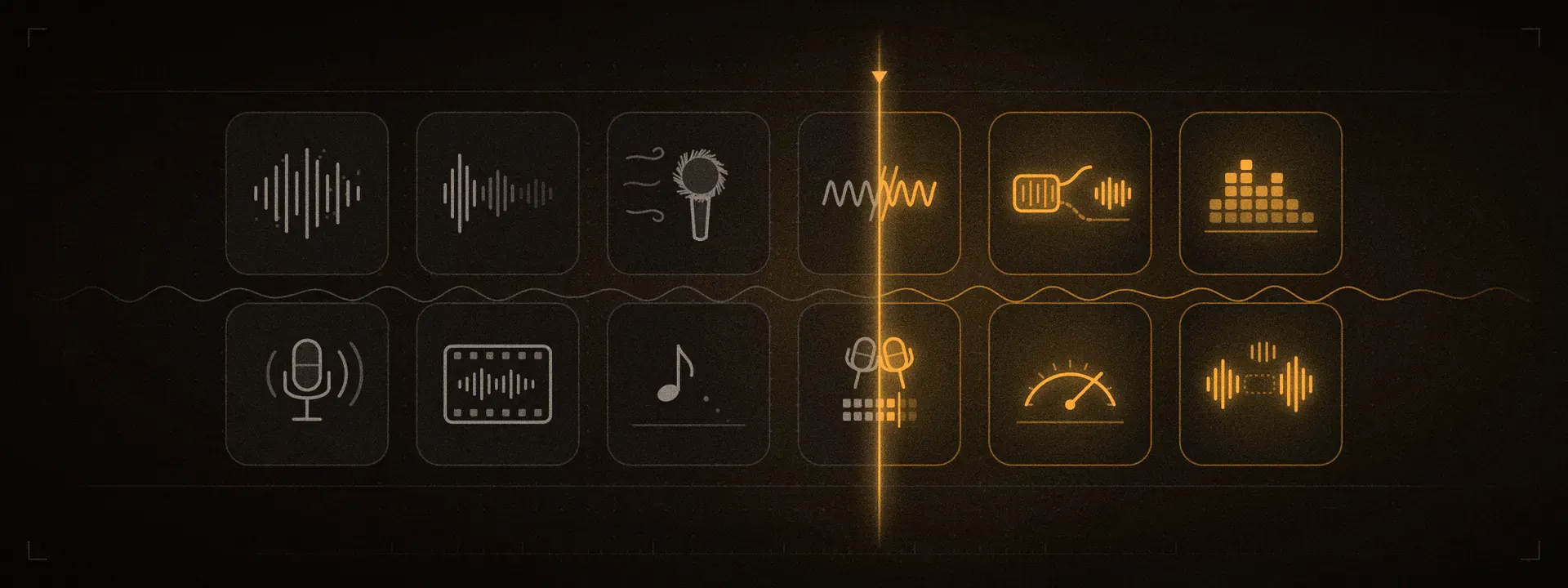
AI audio cleanup works best when the tool matches the problem you hear: background noise, music under speech, a muffled voice, room echo, uneven loudness or a noisy video. Every tool has a free 30-second preview and a strength dial, and you get a WAV back for audio or the same video back for video.
Remove hum, hiss, fans and street noise from any voice recording

Reduce room echo and reverb so the voice sits up front
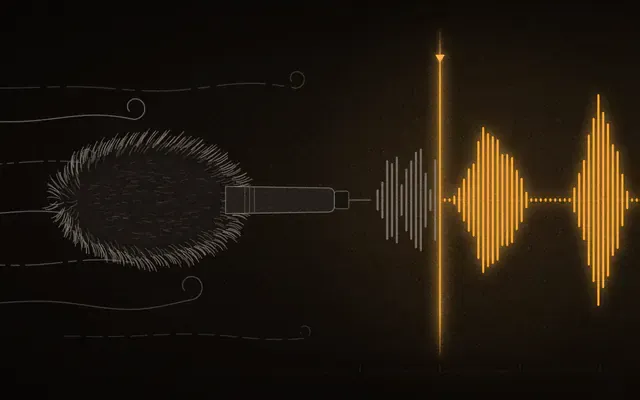
Tame wind rumble on outdoor vlogs and interviews

Remove 50/60 Hz electrical hum and buzz

Pull a clean voice out of noise, crowds and background sound

Make phone and laptop recordings sound studio-quality

Clear up speech so every word is easy to follow

Upload MP4, get the same MP4 back with clean sound

Remove background music from a video and keep the voice

Clean up and normalize every episode to −16 LUFS

Set podcast and YouTube loudness (LUFS) in your browser

Cut “um” and “uh” automatically, with smooth crossfades
Guide
Start with what you hear, not with a tool name. Play ten seconds of the audio and ask what gets in the way of the voice: a steady sound under it, another sound competing with it, or a voice that is simply dull or at the wrong level. Each problem below points to the AI audio cleanup tool built for it.
Air conditioning, computer fans, fridge hum, hiss and distant traffic sit under the voice the whole time. The Noise Remover is the background noise remover for this kind of AI audio cleanup: it keeps the speech and turns everything else down. When the noise is busier, like a café, a crowd or other people talking nearby, the Voice Isolator usually does better, because it pulls the voice out instead of filtering noise away.
A song playing in a café or score under a talking-head video needs a model that separates the voice from the music. Use the Music Remover on videos you made or have the right to edit. If the clip is noisy as well, turn on “Also remove music” in the Voice Isolator: it separates the voice from the music first, then isolates it.
Phone calls, Zoom recordings, laptop mics and low-bitrate audio files often have little noise; the voice just sounds dull, boxy or far away. That is a job for an audio enhancer. The Audio Enhancer rebuilds detail on muffled audio, and the Voice Enhancer focuses on speech so every word is easy to follow. Both have a “Restore high frequencies” option, on by default, that brings back air and clarity.
A lecture hall, an empty room or a tiled kitchen adds echo that makes speech sound distant. The Echo Remover is in beta: for now it runs our noise model at full strength, which reduces some room sound, while a dedicated echo model is still in testing. Use the free preview to hear whether it helps your audio before you spend any minutes.
If the audio is clean but too quiet, too loud or different from episode to episode, you need an audio normalizer rather than noise removal. The Loudness Normalizer sets podcast (−16 LUFS), YouTube (−14 LUFS) or broadcast (−23 LUFS) loudness in your browser, for free, and nothing is uploaded. For an episode that needs cleanup and leveling together, the Podcast Enhancer does both in one pass.
For MP4 or MOV clips, use the Video Noise Remover. Upload the video and you get the same video back with clean audio: only the audio track changes and the picture is copied frame for frame, so there is nothing to re-sync in your editor. You can also download just the audio as a WAV file.
Two problems in one file? Fix the one you notice first, listen again, then run the cleaned audio through a second tool. A common order for AI audio cleanup is noise removal or voice isolation first, then enhancement, then loudness last.
How it works
Every AI audio cleanup tool here follows the same five steps, so once you have cleaned one file you know how they all work.
Upload your file
Drop in an audio file or a video of up to 2 GB. Free accounts can clean files up to 10 minutes long; paid plans take files up to 30 minutes.
The AI model separates the voice
Instead of cutting frequencies the way an EQ or noise gate does, the model separates the voice from the rest of the audio, such as noise, music or room sound, so it can keep speech that overlaps the noise.
Set the strength
The strength dial blends the cleaned voice with the original. Around 70–85% usually sounds most natural, and moving it on a preview is free because the mix happens in your browser.
Compare before and after
Switch between the original and the cleaned audio on the same passage until it sounds right to you.
Download the result
Audio comes back as a 48 kHz WAV; a video comes back as the same video with the new audio. Uploads and results are deleted after 24 hours, and we never use your files to train models.
The 30-second preview is free on every tool. After that, AI audio cleanup is billed per file by length, rounded up to whole minutes, and the Studio shows the exact amount before you start. Failed jobs return their minutes automatically. See audio cleanup pricing and plans for the details.
FAQ
Something else? Write to support@audio2clean.org.
AI audio cleanup uses a trained model to separate a voice from everything around it, such as background noise, music or room sound, and give you back a cleaner audio track. A classic noise gate or EQ only cuts frequencies, so it struggles with noise that overlaps the voice.
Yes. Every tool has a free 30-second preview of your own audio or video. Guests get 2 previews a day without signing up, and free accounts get 3 a day plus 10 welcome minutes, once. The Loudness Normalizer is always free because it runs in your browser.
Pay as you go is $4.99 for 2 hours of processing, valid for 12 months, and Creator is $9.99 a month for 10 hours. Each file is billed by length, rounded up to whole minutes. Most tools use 1 minute per minute of audio; Music Remover, and the enhancers with restore turned on, use 2.
For a full episode, start with the Podcast Enhancer: it removes noise and normalizes the voice to −16 LUFS in one pass. If a remote guest sounds muffled, run the Audio Enhancer or Voice Enhancer on that track first. If the levels are the only problem, the free Loudness Normalizer is enough.
Pushing any audio cleanup to the maximum can make a voice sound processed. That is why every tool has a strength dial that blends the cleaned voice with the original, plus a before-and-after comparison on the preview. Settings around 70–85% usually sound most natural.
Common audio formats such as MP3, WAV, M4A and FLAC, and videos in MP4, MOV or WebM, up to 2 GB per upload. Files can be up to 10 minutes long on a free account and up to 30 minutes on a paid plan. Audio exports as WAV; a video comes back as the same video.
Uploads and results are deleted automatically after 24 hours, and you can delete them yourself sooner. We never use your files to train models.